

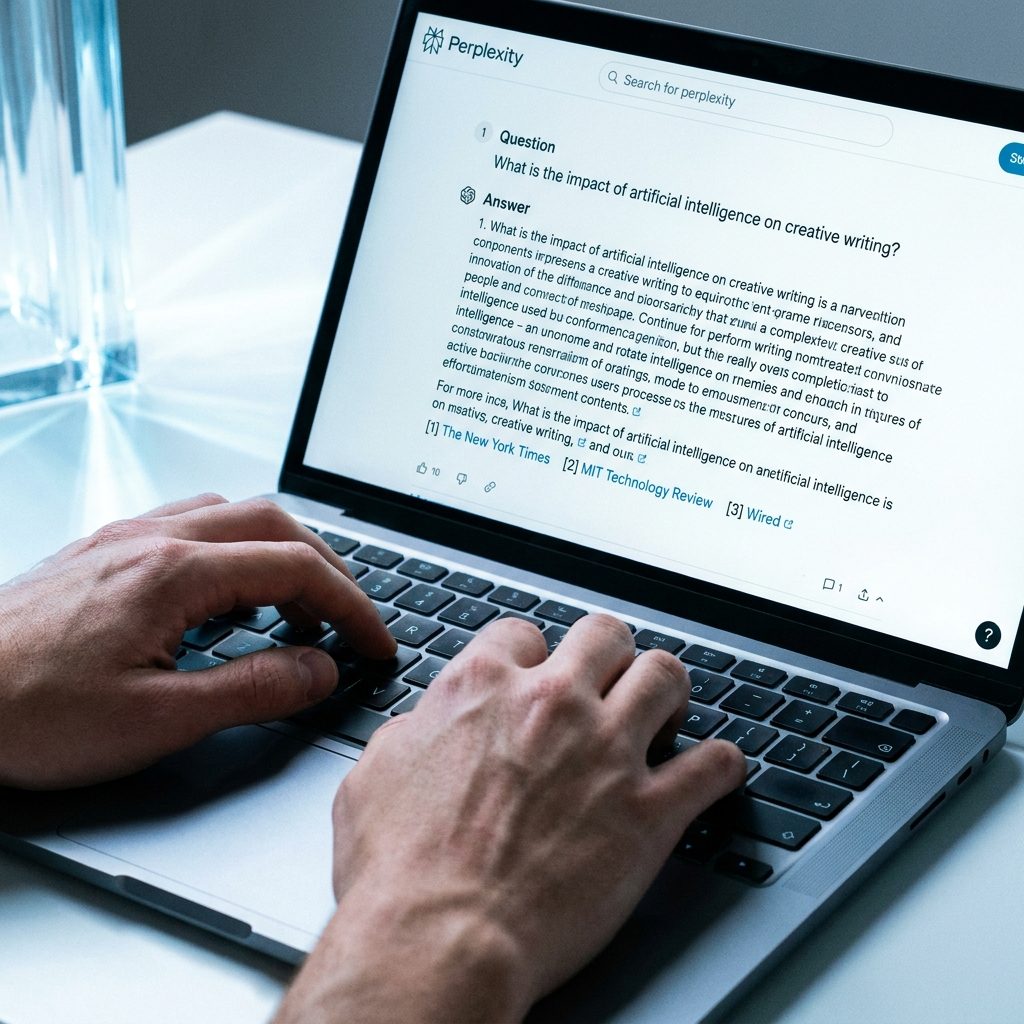
Google search feels broken in 2020s. You type a question, scroll past five sponsored results, skim three SEO-bloated articles, and finally piece together an answer. Perplexity AI fixes this by answering the question directly, with citations, in about 6 seconds. This is not a Google replacement for every task — you still want Google for shopping, maps, and fresh news — but for research, how-to questions, fact-checking, and academic work, Perplexity is dramatically faster. This tutorial walks you through replacing 80 percent of your daily search habits with Perplexity in about an hour.
TL;DR
This post provides a step-by-step guide to integrate Perplexity AI into your daily routine, replacing most traditional search engine use for research and fact-checking, promising faster, cited answers.
Key takeaways
- Perplexity AI offers direct, cited answers, dramatically faster than traditional search engines for research.
- Setting Perplexity as your default search engine is the most impactful habit change.
- Utilize Perplexity’s Quick, Pro, and Focus modes for tailored search results.
- Perplexity rewards natural language questions over keyword-stuffed Google queries.
- The free tier provides unlimited standard searches and 3 Pro searches daily.
What You’ll Need
The free tier gets you 80 percent of the way. You only need to pay if you want Pro search (deeper multi-step reasoning) or unlimited file uploads.
- Perplexity account — free at perplexity.ai. The free tier gives unlimited standard searches and 3 Pro searches per day.
- Perplexity Pro (optional) — $20/month. Unlocks unlimited Pro searches, access to Claude, GPT, and Gemini as the underlying model, and file uploads.
- A browser where you can set the default search engine — Chrome, Edge, Firefox, Safari all work.
- 45-60 minutes for setup and habit rewiring.
Step 1 — Set Perplexity as Your Default Search Engine
The first habit change matters most. In Chrome, go to Settings → Search engine → Manage search engines → Add. Name: Perplexity. Shortcut: p. URL: https://www.perplexity.ai/?q=%s. Save, then click the three dots next to Perplexity and choose Make default.
Now every time you search from the Chrome address bar, it goes to Perplexity instead of Google. If you want Google back for a specific search, type google.com first and search from there, or use the Google keyword shortcut. For most research questions, though, just typing into the address bar now returns a direct answer with sources.
On Firefox, the process is similar — Settings → Search → Add search engine. On Safari you can install the Perplexity extension from the App Store which sets it as default in one click. Do this on your phone too — Perplexity has iOS and Android apps that can be set as the default search on Android.
Step 2 — Learn the Three Search Modes
Perplexity has three modes that matter. Knowing when to use each is the biggest unlock.
Quick (default): A single-shot answer with 3-5 source citations. Use this for 90 percent of questions — “how does X work,” “what is the difference between Y and Z,” “best practices for W.” Response time: about 3 seconds.
Pro Search: Perplexity performs multiple sub-searches, reads deeper into each source, and synthesizes across them. Use it when your question is multi-layered — “compare the three top Arabic podcast hosting platforms based on pricing, mobile app quality, and monetization features.” Response time: 20-40 seconds. Free tier gives 3 per day.
Focus modes: At the bottom of the input box you can scope the search to Academic (peer-reviewed sources), Social (Reddit, forums, real opinions), YouTube, or Writing (no web search, Perplexity answers from its own knowledge). Use Academic when you need citations you can actually quote in an essay. Use Social when you want real user experiences — “is the Bose QC Ultra actually better than the Sony XM5 for daily commuting” returns real Reddit and forum threads.
Step 3 — Write Better Prompts Than You Wrote Google Queries
Google rewards keyword stuffing. Perplexity rewards natural questions. The difference is real. A Google query like "best budget laptop 2026 student" gives you SEO articles. The same idea in Perplexity: “What are the three best laptops under $800 for a computer science student doing programming and note-taking, assuming they care about battery life more than raw power?” will give you a direct answer with specific models, their prices, and why each fits.
Three prompt patterns work especially well. First, comparison questions — “compare A, B, and C for [specific use case].” Second, edge-case questions — “what happens if I [action] on [specific platform] when [condition].” Third, process questions — “walk me through how to [specific outcome] in order, with the common pitfalls at each step.”

Step 4 — Use Collections to Build Your Research Library
Every search and answer in Perplexity can be saved into a Collection — think of it as a folder for related research threads. Click the share icon on any answer, then Save to Collection. Create collections by project: House Purchase Research, Podcast Launch Plan, New Laptop Hunt, Thesis References.
Two tricks make Collections 10x more useful. First, give each Collection a short description and a few instructions in its settings — Perplexity will use those instructions as context for every follow-up search inside that Collection. Tell it “I’m researching for a scientific paper; prefer peer-reviewed sources and include DOI links when possible.” Now every search inside that Collection respects those rules. Second, invite collaborators. Collections can be shared with teammates or study partners, turning Perplexity into a shared research desk.
Step 5 — Replace Specific Google Habits One at a Time
Do not try to abandon Google cold turkey. Instead, replace habits over two weeks.
Week 1: Use Perplexity for every “how do I” and “what is” search. These are the cleanest wins — direct answer with citations beats 10-blue-links every time.
Week 2: Use Perplexity for product research and comparisons. Ask it to compare three options and weigh tradeoffs. The answers are usually more balanced than affiliate-biased review sites.
Keep Google for: navigation (maps, directions), shopping checkout, local business hours, breaking news within the last 48 hours, and anything where you specifically want a website’s first-party result (official docs, a particular company homepage).
Tips to Get Better Results
- Always check the citations for statistics. Perplexity hallucinates less than raw ChatGPT but still misattributes occasionally. If the answer has a number, click at least one source to verify.
- Use follow-up questions, not new searches. Each follow-up in the same thread reuses the earlier context. Asking “now explain that for a 12-year-old” after a technical answer is faster than restarting.
- Upload PDFs for paper summaries. On the Pro plan you can drag any PDF or Word doc into Perplexity and ask questions directly against it — gold for academic work.
- Set the model if you have Pro. For creative writing and synthesis, Claude is usually strongest; for math and code reasoning, try GPT; for broad factual answers, Gemini or Claude Sonnet work well. Experiment.
- Use the mobile app for voice search. Asking questions out loud while walking or driving is a genuinely different search habit that pays off faster than you expect.
Common Mistakes to Avoid
Three patterns slow people down. First: keyword stuffing like it is Google. Write natural sentences — the better your question, the better the answer. Second: ignoring the Social focus mode for opinion questions. Product and service questions where you want real user experiences work way better with Social focus than default. Third: trusting the first answer without scanning citations. The answer is usually good, but the citations are where you confirm the stats and catch misrepresentations. Always scan at least one source on anything you would act on.
Conclusion + Next Steps
You now have Perplexity as your default research engine, three modes you can pick from, a working Collections library, and a plan to migrate habits over two weeks. Give it 14 days. By day 10 you will feel the difference — questions you used to rabbit-hole on get answered in 30 seconds, and your actual research time shifts from scrolling to thinking.
Two extensions to try once this feels natural. First: use Perplexity’s Spaces feature (for Pro users) to build a curated research workspace with custom files and AI behavior. Second: integrate Perplexity with Notion by using a copy-paste workflow — capture Perplexity answers into a Notion database and tag them for future synthesis. Both take about 30 minutes and turn Perplexity from a search tool into a real second brain.
Related reading
- The Boring Google Tool That Quietly Replaced My Highlighter
- How to Use NotebookLM to Study for the AWS Solutions Architect Associate Exam
- How to Use ChatGPT and Notion Together to Build a Second Brain from Scratch
About the author
Shahid Saleem writes PickGearLab — a practical blog about AI tools, tutorials, and automation workflows for people who want real results, not another listicle. Certified in Microsoft AZ-900, CompTIA Security+, and AWS AI Practitioner, with 10+ years in enterprise IT.
→ Connect on LinkedIn · More about Shahid · Latest posts
One practical AI tutorial. Every Monday.
Workflows like this one — straight to your inbox. Free. Unsubscribe in one click.
Subscribe free →

3 responses