


Your best ideas do not show up when you are sitting at a desk. They show up in the car, on a walk, in the shower, or the moment you lie down to sleep. A voice memo captures them in 10 seconds, but turning a 6-minute ramble into a clean note you can actually use later is where most people give up. This tutorial shows you how to turn any voice memo into a structured, searchable written note in under 2 minutes using OpenAI Whisper for transcription and ChatGPT for cleanup. Setup takes 15 minutes. After that, every voice memo on your phone is one drag-and-drop from being useful text.
TL;DR
This tutorial shows how to convert voice memos into clean, structured written notes in under 2 minutes using OpenAI Whisper for transcription and ChatGPT for cleanup, with setup taking about 15 minutes.
Key takeaways
- Speak clearly, pause between thoughts, and state the memo’s topic upfront for better transcription.
- ChatGPT Plus allows direct audio file upload for transcription, simplifying the process significantly.
- Use a specific prompt for raw transcription, then a separate prompt for cleanup and structuring.
- Renaming voice memo files immediately after recording enhances future findability and organization.
- The OpenAI API with Whisper offers a cheaper, more accurate alternative for power users with longer recordings.
What You’ll Need
This stack has a free path and a paid path. The free path is slower; the paid path costs about 6 cents per hour of audio.
- Your phone’s voice memo app — free and already installed. Apple Voice Memos on iPhone, or Google Recorder on Android.
- ChatGPT Plus ($20/month) — strongly recommended. ChatGPT Plus includes audio file upload and direct transcription, so you skip a step.
- Alternative free path: OpenAI API access with pay-as-you-go Whisper ($0.006 per minute of audio). For a power user this is cheaper than ChatGPT Plus.
- A cloud folder or notes app (Notion, Apple Notes, Obsidian, Google Keep) to drop cleaned-up notes into.
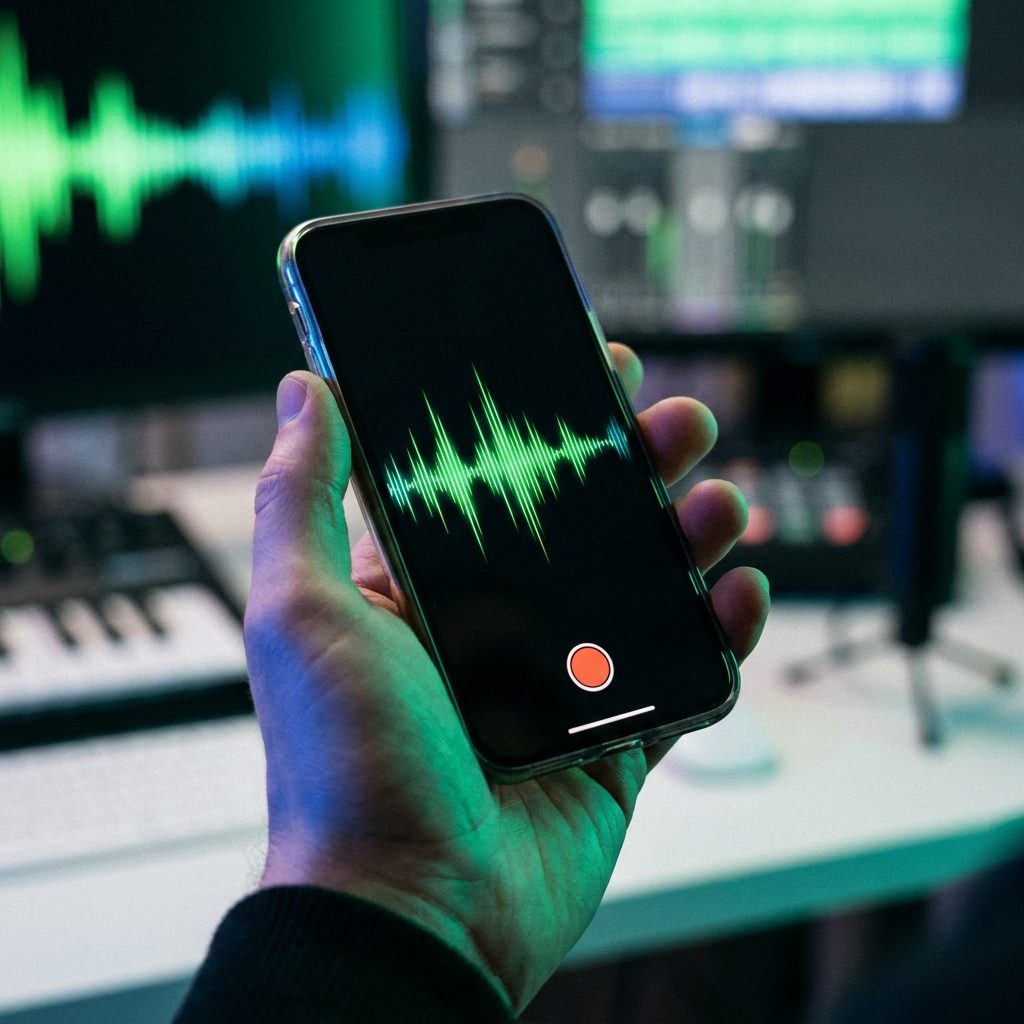
Step 1 — Capture the Voice Memo Properly
Good transcription starts with good audio. You do not need studio quality, but three small habits improve accuracy dramatically.
First, speak at normal volume and hold the phone about 20-30 cm from your mouth. Whispering and shouting both degrade accuracy. Second, pause briefly between thoughts — a half-second pause gives both Whisper and ChatGPT clear boundaries to work with. Third, start by saying what the memo is about in one sentence: “This is a memo about a product launch idea.” That single framing sentence massively improves the quality of the cleanup pass.
When you finish, rename the file immediately. On iPhone, tap the memo title and give it a descriptive name — “product-launch-idea-oct” is infinitely more findable than “New Recording 47.” On Android, Google Recorder automatically generates a title but you can edit it in the same way.
Step 2 — Transcribe with Whisper via ChatGPT
The easiest path: export the voice memo from your phone and drag it into a ChatGPT conversation. On iPhone, tap the memo, hit the share icon, and choose Save to Files or email it to yourself. Open ChatGPT (web or desktop app) and drag the file into the message box. ChatGPT handles audio files up to about 25 MB directly — roughly 20 minutes of voice memo.
Send a simple prompt with the audio:
Prompt: “Transcribe this audio file verbatim. Do not clean it up yet — I want the raw transcript first.”
Within 20-40 seconds you get the full text. Copy it. If you have a longer recording or want more accuracy, use OpenAI’s API with Whisper directly — send the audio to the Whisper endpoint using a simple curl command and receive a clean text file back. The API can handle files up to 25 MB and processes at roughly 8-10x real-time speed.
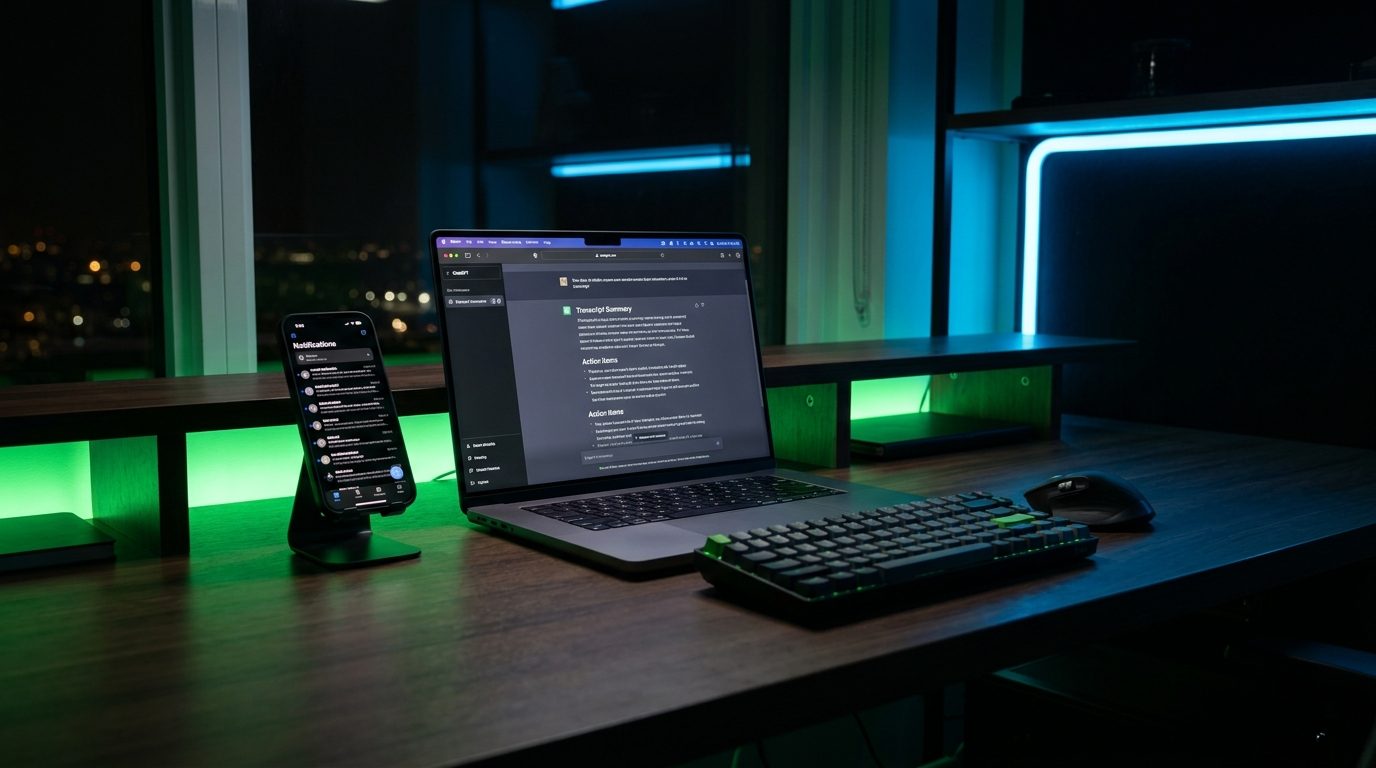
Step 3 — Clean Up the Transcript with ChatGPT
Raw transcripts are messy. You repeat yourself, trail off, use filler words, and jump between thoughts. This step turns the raw dump into something you actually want to read. Paste the raw transcript back into ChatGPT with this prompt:
Prompt: “Clean up this voice memo transcript into a structured note. Remove filler words and repetitions. Group related ideas into sections with short headings. Preserve any specific names, numbers, and technical terms exactly as spoken. At the top, add a 1-sentence summary and a 3-bullet ‘key takeaways’ list. Transcript: [paste here]”
The output is usually 30-50 percent shorter than the raw transcript and dramatically clearer. The summary and key takeaways at the top let you re-read the note in 5 seconds later, deciding whether to dig deeper or move on. The preserved specific terms keep the note actionable — if you named a person, a product, or a number, those survive the cleanup untouched.
Step 4 — Turn the Cleaned Note into an Action Item or Draft
Most voice memos have one of three underlying goals: a task you want to do, a piece of content you want to write, or a decision you want to revisit. After cleanup, run one of these follow-up prompts.
For a task: “Turn this cleaned note into a specific, actionable to-do list with 3-5 items. Each item should start with a verb and include a realistic deadline.”
For a content draft: “Expand this cleaned note into a 500-word blog post draft. Keep my original voice — direct, slightly informal. Add specific examples where my memo was vague.”
For a decision memo: “Reframe this cleaned note as a decision memo with three sections: Context, Options Considered, Recommendation. Keep it under 300 words.”
The same voice memo can become any of these depending on what you need. Keep the cleaned transcript as the source of truth, then generate as many derivative artifacts from it as you want.
Step 5 — Save It into Your Notes System
A clean note on ChatGPT’s scroll is useless if you forget where it is. Drop it into whatever system you already use.
In Notion, create a database called Voice Notes with a title, date, and status (Raw, Cleaned, Acted-On). Paste the cleaned note, tag it, and link to any related projects. In Apple Notes or Google Keep, just paste into a new note with the original memo’s date as the title. In Obsidian, create a single file per memo in a Voice Notes/ folder so you can search across all of them later with Obsidian’s native search.
Whichever system you pick, the non-negotiable habit: save the cleaned note within 10 minutes of making it. If it sits in a ChatGPT window overnight, you lose it. A two-second paste is the difference between a captured idea and a wasted one.
Tips to Get Better Results
- Ask Whisper for the language explicitly if you mix languages. If your memo switches between English and Arabic, start the prompt with “Transcribe in both English and Arabic, preserving the original language of each sentence.”
- Keep memos under 10 minutes. Anything longer is harder for ChatGPT to cleanup coherently in a single pass. Split long recordings into chunks.
- Say numbers and technical names slowly. Whisper makes mistakes on unusual proper nouns. Pausing briefly before and after names of people, products, or acronyms dramatically improves accuracy.
- Save the raw transcript too. Even after cleanup, keep the raw version. When you need to check exactly what you said, the raw transcript is the receipt.
- Use a template prompt. Save your favorite cleanup prompt as a ChatGPT Custom Instruction or a text snippet on your phone so you never have to rewrite it.
Common Mistakes to Avoid
Three patterns make this workflow fail. First: skipping the framing sentence at the start. Without context, ChatGPT’s cleanup misses the point of your memo half the time. Always state what it is about in the first 3 seconds. Second: over-editing the cleanup. ChatGPT sometimes smooths out your voice into generic prose. If it feels too polished, prompt it to “keep the original voice, tone, and any informal phrasing — do not make it more formal than it was.” Third: not saving the cleaned note somewhere permanent. A cleaned note in a ChatGPT conversation window is already half-lost. Paste it into your notes system the same day.
Conclusion + Next Steps
You now have a 2-minute workflow that turns any voice memo into a structured, searchable, actionable written note. Give it 14 days. By day 7 you will find yourself using voice memos in moments you previously would not have — walking the dog, driving, waiting in line — because the friction of turning them into useful text just disappeared.
Once this feels routine, try two upgrades. First, build an automatic pipeline using Zapier: new audio file in Dropbox → Whisper API transcription → ChatGPT cleanup → new Notion entry. That removes even the manual paste step. Second, experiment with real-time transcription apps like Otter.ai or Whisper-based mobile apps (Voicepen, AudioPen) for longer recordings where you want to see the transcript while you record. Both take about 45 minutes to set up and turn this from a workflow into a habit you will never stop using.
Related reading
- Three AI Tools That Turn Long Meetings Into 5-Minute Written Summaries
- How Arab Content Creators and Podcasters Can Use AI Tools to Save Time and Grow Faster
- How to Use ChatGPT Voice Mode to Practice Job Interview Questions
About the author
Shahid Saleem writes PickGearLab — a practical blog about AI tools, tutorials, and automation workflows for people who want real results, not another listicle. Certified in Microsoft AZ-900, CompTIA Security+, and AWS AI Practitioner, with 10+ years in enterprise IT.
→ Connect on LinkedIn · More about Shahid · Latest posts
One practical AI tutorial. Every Monday.
Workflows like this one — straight to your inbox. Free. Unsubscribe in one click.
Subscribe free →

5 responses