

Every Monday morning I used to open a blank Notion page and stare at it for ten minutes before writing anything useful. I knew what needed to go in my weekly plan — tasks, priorities, blockers, goals — but the blank page friction was real, and on a busy Monday it was enough to make me skip the planning entirely.
Notion AI changed that. Not because it plans my week for me — it doesn’t — but because it removes the blank page problem and turns planning from something I resist into something I actually do.
Here’s the exact workflow I use.
What Notion AI Can Do in a Planning Context
Notion AI is an add-on to Notion that lets you prompt an AI assistant directly inside any Notion page. Unlike using Claude or ChatGPT in a separate browser tab, Notion AI can read the content of your existing Notion pages and work with it directly.
For weekly planning, the most useful capabilities are:
- Draft generation: give it a few bullet points and it writes a full structured plan
- Summarisation: pull last week’s completed tasks and summarise what got done
- Prioritisation prompts: ask it to help you rank tasks by urgency and impact
- Template filling: you provide the structure, it fills in the details from your notes
It doesn’t connect to your calendar, your email, or your project management tool unless you’ve manually pulled that information into Notion. The AI works with what’s on the page — so the quality of the output depends on the quality of the inputs you give it.
Step 1: Set Up Your Weekly Planning Template
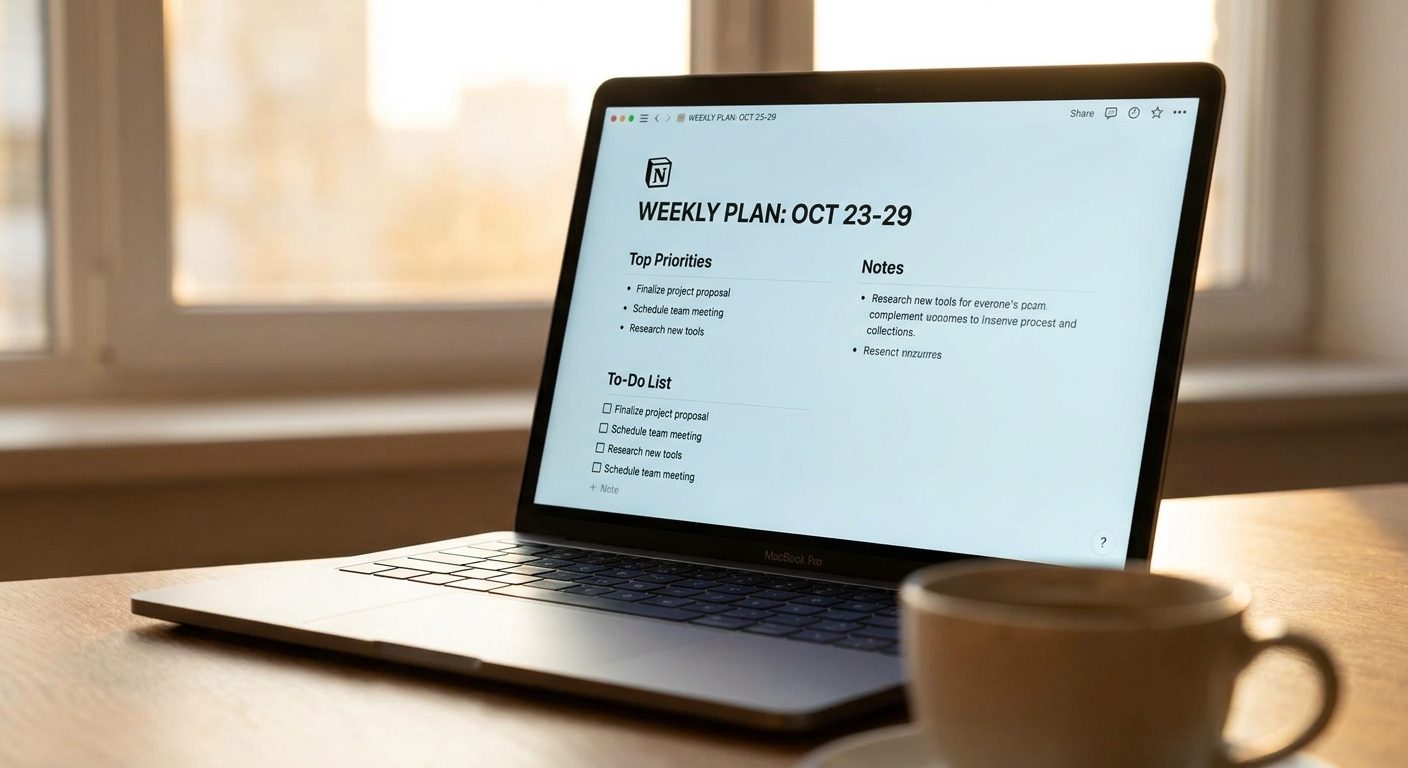
Create a Notion page with this structure — you’ll use this every week:
## Week of [DATE]

### Last week: what got done
[paste your completed tasks or notes here]

### This week: brain dump
[dump everything on your mind — tasks, meetings, projects, worries]

### Priorities (AI will help fill this)

### Daily focus (AI will help fill this)

### Blockers and risks

### One thing that would make this week a win
The brain dump section is the key. Spend three to five minutes writing everything you need to do this week with no filtering, no prioritisation — just get it out of your head and onto the page. Tasks, meetings, follow-ups, projects, things you’ve been avoiding. Everything.
Step 2: Let Notion AI Organise the Brain Dump
Once your brain dump is on the page, highlight it and use Notion AI with this prompt:
“Organise this brain dump into three categories: must do this week (time-sensitive or blocking others), should do this week (important but flexible), and can wait (lower priority or not yet urgent). Keep the original wording for each item.”
Notion AI will sort your unstructured list into a structured priority framework. This takes about 30 seconds. Review it — the AI occasionally miscategorises things it doesn’t have context for — and adjust as needed. But usually 80–90% of the categorisation is right.
Step 3: Generate Your Daily Focus Plan
With your prioritised task list visible on the page, prompt Notion AI:
“Based on the must-do tasks above, suggest a daily focus for Monday through Friday. Each day should have one main task and no more than two secondary tasks. Assume I have four hours of focused work time per day, with meetings taking the rest.”
The output gives you a draft five-day plan. Again, review it — the AI doesn’t know about your fixed commitments, your energy patterns, or that Wednesday afternoon is always chaotic. Edit accordingly. The value is in the draft, not in accepting it wholesale.

Step 4: Summarise Last Week
At the end of each week, before you close out, spend two minutes adding a bullet list of what actually got done to the “last week” section. Don’t be exhaustive — just the main things completed and anything that didn’t get done that carries forward.
When you open the following week’s planning page, paste in last week’s summary and use this Notion AI prompt:
“Based on last week’s summary, identify: what was completed and can be closed, what is still in progress and should carry forward, and any pattern in what consistently didn’t get done.”
That last part — patterns in what didn’t get done — is genuinely useful. If the same task appears in your carry-forward list three weeks running, that’s a signal: either it’s not actually a priority, it’s blocked by something you haven’t acknowledged, or you’re consistently overcommitting on other work.
Step 5: Write the One-Line Weekly Summary
At the top of your weekly plan, once you’ve finished building it, add one sentence:
“If this week goes well, the one thing I will have moved forward is: ____.”
Fill this in yourself — don’t use the AI for this part. It forces you to decide what success looks like before the week starts, not after. Everything else in the plan is in service of that one thing.
What This Looks Like in Practice
Monday morning routine with this workflow:
- Open the weekly template page (3 seconds)
- Paste last week’s completed items into the summary section (2 minutes)
- Brain dump everything for the week (5 minutes, no filtering)
- Run the categorisation prompt on the brain dump (30 seconds)
- Review and adjust the AI’s prioritisation (2 minutes)
- Run the daily focus prompt (30 seconds)
- Review and adjust the daily plan (3 minutes)
- Write the one-line weekly win (1 minute)
Total: around 15 minutes. Compare that to the 45-minute Monday morning where I’d open a blank page, second-guess my priorities, get distracted by email, and start the week with no real plan.
A Note on What the AI Doesn’t Replace
Notion AI doesn’t make decisions for you. It organises what you give it and generates drafts you then edit. The thinking — what actually matters this week, what you’re avoiding and why, what trade-offs you’re making — that’s still yours.
What it does is remove friction from the process of getting that thinking out of your head and into a usable format. For people who find planning painful because of the blank page, the formatting, or the endless re-sorting — that friction reduction is what makes the difference between planning and not planning.
About the author
Shahid Saleem writes PickGearLab — a practical blog about AI tools, tutorials, and automation workflows for people who want real results, not another listicle. Certified in Microsoft AZ-900, CompTIA Security+, and AWS AI Practitioner, with 10+ years in enterprise IT.
→ Connect on LinkedIn · More about Shahid · Latest posts
Related reading
- How to Build a 90-Day Enterprise Territory Plan With AI (When You Have 40 Named Accounts)
- Motion vs Reclaim.ai: Which AI Calendar Actually Protects Your Deep Work?
- How to Use ChatGPT and Notion Together to Build a Second Brain from Scratch
- The ChatGPT Morning Routine That Saves Me 90 Minutes Every Day
- How I Turn a Customer Sales Call Into a Case Study in Under an Hour Using Granola, Claude, and Notion
One practical AI tutorial. Every Monday.
Workflows like this one — straight to your inbox. Free. Unsubscribe in one click.
Subscribe free →


1 response