
Most freelancers know they should be posting consistently on social media. Most don’t, because the workflow of writing, designing, and scheduling content for a week takes most of a working day — and that day rarely happens.
The three-tool stack I use compresses that work into about two hours, every other Sunday. The output is a fortnight of social posts, designed and queued, ready to publish without further effort. Here’s exactly how it works.
Why Three Tools Instead of One
You could write social content in ChatGPT alone. You could design in Canva alone. You could schedule in Buffer alone. You can’t do all three well in any single tool — and trying usually means doing each badly.
The three-tool approach assigns each tool the job it’s actually best at:
- ChatGPT: draft the post copy in your voice, fast
- Canva AI: generate the visual design from a one-line description
- Buffer: schedule the finished posts to publish across platforms automatically
Each step takes about 30–40 minutes for two weeks of content. The whole flow runs in roughly two hours.
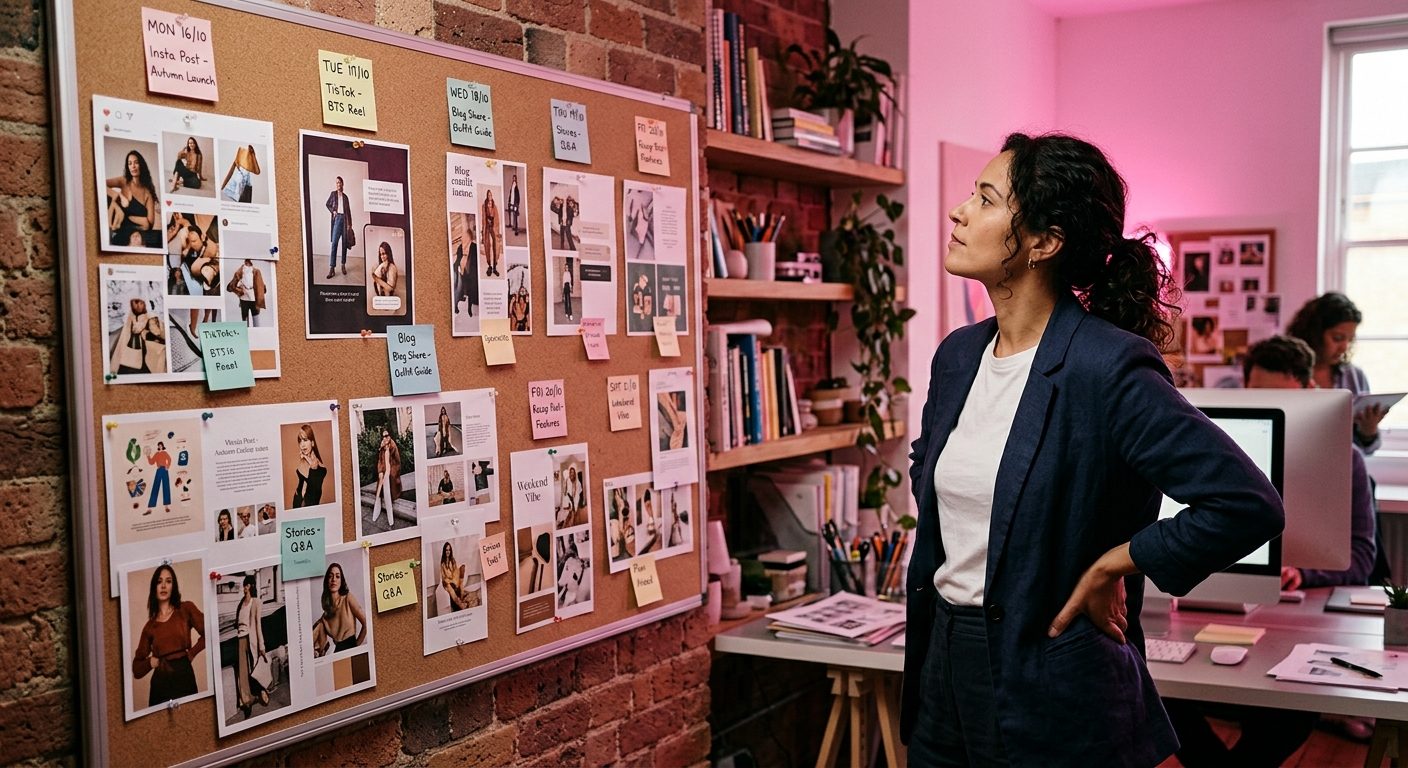
Step 1: Plan the Content (10 Minutes)
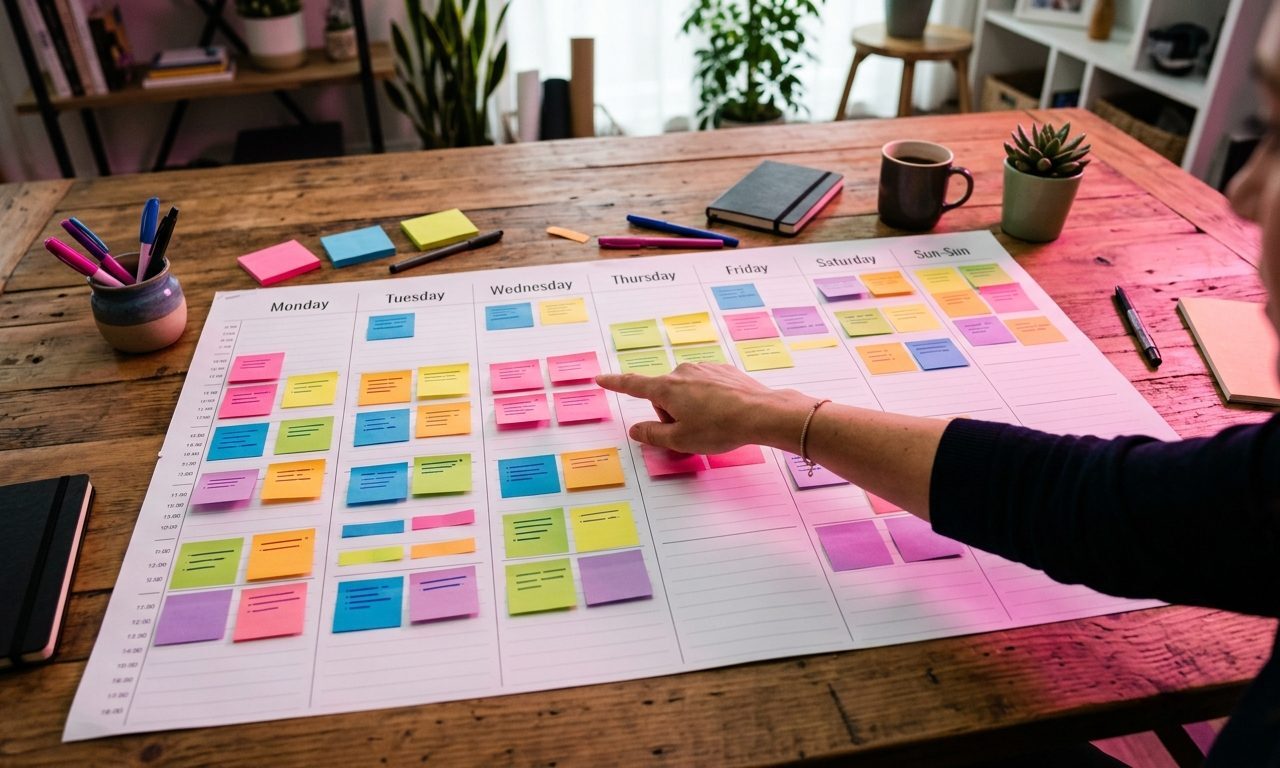
Before opening any tool, write a quick plan. Nothing fancy — a simple list of the topics you want to cover over the next two weeks. For most freelancers and creators, the rule of thumb is:
- 50% educational (tips, lessons, tutorials from your work)
- 30% personal opinion or observation
- 15% client work or case studies (with permission)
- 5% promotion (your services, content, products)
For two weeks at one post per day, that’s 14 topics. Write each as a one-sentence prompt: “Three things I learned from a client call yesterday about pricing.” “Why I stopped using Tool X for Y.” “A small workflow change that saved me 20 minutes a day.”
Don’t overthink the topics. Quantity matters more than perfect picks at this stage.
Step 2: Draft the Copy in ChatGPT (30 Minutes)
Open ChatGPT and paste this prompt structure:
“I want to write a LinkedIn post for [your audience]. The topic is: [paste one of your topic sentences]. Write a post that: opens with a specific concrete hook (not a question); tells the story or makes the point in plain language; is under 200 words; ends with a genuine observation rather than a call to action. Avoid clichéd phrases, avoid bullet lists, avoid the format ‘Here’s what I learned’.”
Run this for each of your 14 topics. ChatGPT will produce 14 drafts in about 15 minutes.
Then spend another 15 minutes editing. Replace generic phrases with specific details. Cut the throat-clearing. Read each post aloud. The goal isn’t perfection — it’s that the post sounds like you wrote it, not like an AI did.
Step 3: Generate the Visuals in Canva AI (30 Minutes)
Canva AI (called Magic Studio inside Canva) can generate post graphics from a text description. Open Canva, create a new design at LinkedIn post dimensions (1200×627 pixels), and use the Magic Design feature.
For each post, prompt Canva AI with a one-line visual brief that matches the post topic:
- “Clean minimal graphic with the headline ‘Three things I learned from a $5,000 sales call’ on a dark background with a subtle accent line”
- “Simple text-only graphic, white background, dark text, headline ‘Why I stopped using Notion AI'”
- “Editorial-style graphic with a numbered list of three pricing principles, neutral colour palette”
Canva will generate four to six options. Pick the one closest to your brand, adjust the text if Canva got the headline slightly wrong, and download as a PNG.
Keep the visual style consistent across all 14 graphics. Pick one font, one accent colour, one general layout direction, and stick with it. Visual consistency matters more than visual perfection at this stage.

Get the next tutorial in your inbox
One AI tutorial or comparison per week. No filler, no listicles.
Step 4: Queue Everything in Buffer (30 Minutes)
Buffer is where the schedule actually happens. Open your Buffer dashboard, connect the social accounts you want to post to (LinkedIn, X, Instagram, Bluesky), and set up a posting schedule.
For one post per day:
- Buffer settings → Posting Schedule → choose your preferred posting time per platform
- Select the days of the week you want to post (most people skip weekends)
- Set the time for each platform — LinkedIn typically performs best between 8am and 10am local time on weekdays
Then add each post to the queue:
- Click Create Post
- Paste the text from your ChatGPT draft (after editing)
- Upload the matching graphic from Canva
- Adjust character count for each platform if needed (LinkedIn allows 3,000 characters, X allows 280)
- Click Add to Queue
Buffer will schedule each post in the next available slot in your queue. After 14 posts, you have two weeks of content scheduled, no further action needed.
What This Costs
| Tool | Plan needed | Cost |
|---|---|---|
| ChatGPT | Free or Plus | $0–$20/mo |
| Canva AI | Canva Pro | $15/mo |
| Buffer | Essentials | $6/mo per channel |
| Total | $21–$50/mo |
The free tier of Canva also generates AI designs, just with watermarks and fewer credits. Free Buffer covers up to 3 social accounts. So you can run this entire workflow for the cost of ChatGPT alone if you keep things basic.
What Makes the Workflow Stick
The reason this approach works (when most “post consistently” advice doesn’t) is that it batches the work to a single time block. You’re not deciding what to post each day. You’re not opening a blank canvas every morning. You sat down once for two hours, made the decisions, and the system handles the rest.
The output won’t be your best individual post. It’ll be your most consistent fortnight of posting. For most freelancers, consistent average content beats occasional brilliant content for visibility and audience growth.
Run the workflow every other Sunday. Block two hours in your calendar. After three or four cycles, the rhythm becomes automatic and the time per cycle drops to 60–90 minutes.
About the author
Shahid Saleem writes PickGearLab — a practical blog about AI tools, tutorials, and automation workflows for people who want real results, not another listicle. Certified in Microsoft AZ-900, CompTIA Security+, and AWS AI Practitioner, with 10+ years in enterprise IT.
→ Connect on LinkedIn · More about Shahid · Latest posts
Related reading
- How to Use ChatGPT to Write LinkedIn Posts That Actually Get Engagement
- How to Use Notion AI to Plan and Write Your Weekly Work Summary
- Three AI Tools That Turn a Client Brief Into a Polished First Draft in 30 Minutes
One practical AI tutorial. Every Monday.
Workflows like this one — straight to your inbox. Free. Unsubscribe in one click.
Subscribe free →