


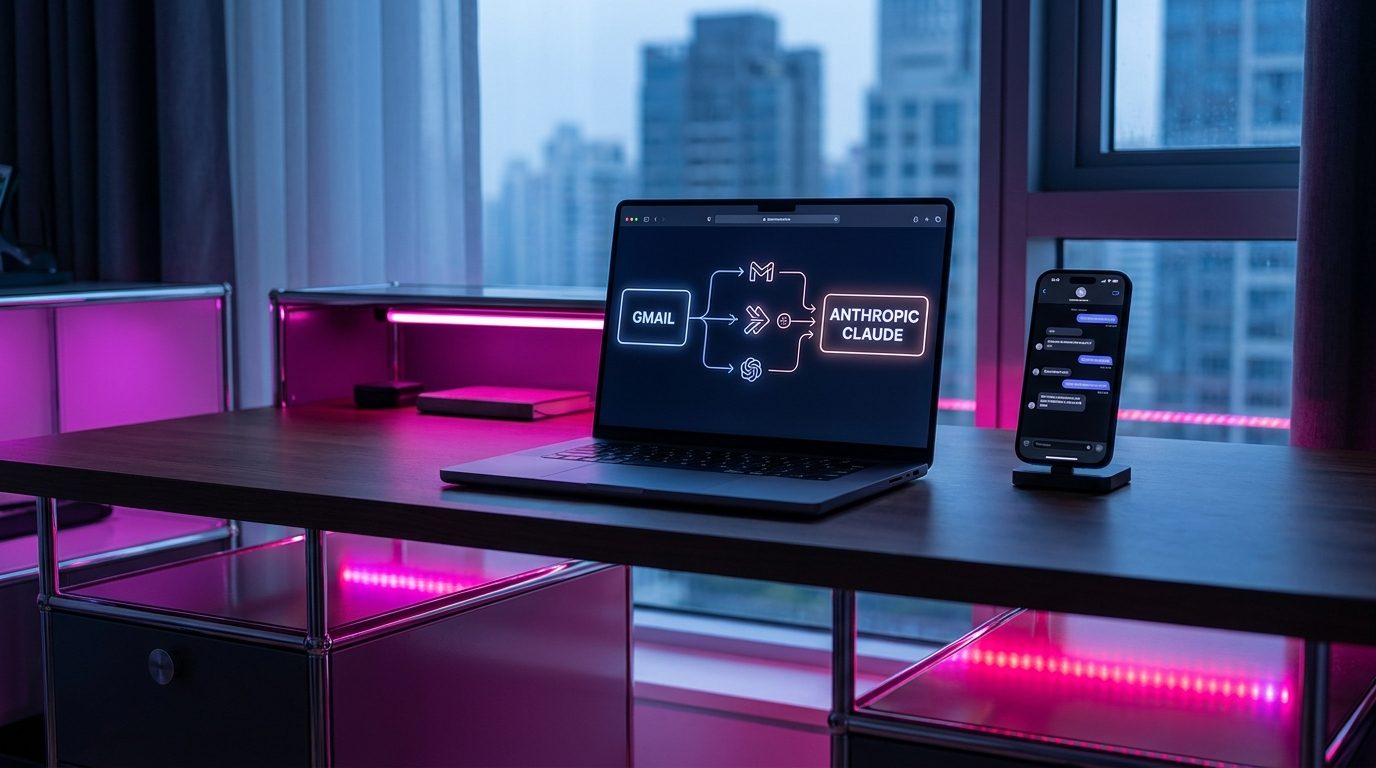
If your inbox looks like a newsletter graveyard with the occasional real email buried underneath, you are not alone. Traditional filters are too brittle, and reading every email to triage it eats up 30-45 minutes a day. This tutorial shows you how to build a smarter inbox using Claude (Anthropic’s AI) and Zapier (the no-code automation platform) working together. The result is a Gmail that reads, classifies, summarizes, and even drafts replies for you. Setup takes about 45 minutes. After that, your email triage drops to under 10 minutes a day.
TL;DR
This tutorial shows how to automate Gmail inbox triage using Claude AI and Zapier, reducing daily email processing from 30-45 minutes to under 10 minutes.
Key takeaways
- Combine Claude AI and Zapier to automatically read, classify, summarize, and draft replies for emails.
- Initial setup requires about 45 minutes, then daily email triage drops significantly.
- Use Gmail labels like AI/Action Required and AI/Newsletter for Claude’s classification.
- Configure Zapier to trigger on unread emails, send content to Claude, and apply labels based on AI output.
- Claude Sonnet 4.5 offers a good balance of quality and cost for this automation.
What You’ll Need
Here is the starter stack. Everything has a free tier good enough for the basic setup; you will only need paid plans once volume grows.
- Gmail account — free. Works with both personal and Google Workspace accounts.
- Zapier account — free plan includes 100 tasks/month across 2 Zaps. The Professional plan ($19.99/month) raises limits if you process more than 100 emails/month.
- Anthropic Claude API key — pay as you go. Claude Sonnet 4.5 is currently about $3 per million input tokens; you will spend pennies on a personal inbox. Get a key at console.anthropic.com.
- Basic Gmail labels you already use (or are willing to create): Action Required, Waiting, Reference, Newsletter, Spam-like. Simple is better.

Step 1 — Create the Gmail Labels Claude Will Use
Automation needs a clear taxonomy. Open Gmail, go to Settings, click the Labels tab, and create these five labels: AI/Action Required, AI/Waiting, AI/Reference, AI/Newsletter, AI/Low Priority. The AI/ prefix makes it obvious which labels are machine-applied versus your own.
You also want a master view. Create a Gmail filter that matches any email with an AI/ label and apply a star. This gives you a single starred view showing every AI-classified email across all categories. Test the labels by manually applying one to an existing email before moving on — this confirms Zapier will be able to see and use them.
Step 2 — Set Up the Core Zap: Gmail to Claude
Log into Zapier and click Create Zap. Choose Gmail as the trigger app and New Email Matching Search as the trigger event. In the search string, type is:unread -label:AI. This runs Claude only on unread emails you have not already processed.
For the action step, add Anthropic (Claude) as the app. Pick Send Prompt as the action. Connect your API key. In the prompt field, paste this:
Prompt: “You are my inbox triage assistant. Read the email below and return JSON with two fields: category (one of: action, waiting, reference, newsletter, low) and summary (a one-sentence plain-English description of what the email is about or needs from me). Email subject: {{subject}}. From: {{from}}. Body: {{body_plain}}.”
Set the Claude model to Claude Sonnet 4.5 (good balance of quality and price). Test the step — Zapier will run the Zap on a sample email and show Claude’s JSON response. Confirm it parses correctly before moving on.
Step 3 — Use Claude’s Output to Label the Email in Gmail
Add a second action step: Gmail → Add Label to Email. For the label, use a Zapier Formatter step to map Claude’s category output to the actual label name. The simplest way is a Lookup Table in the Formatter: action → AI/Action Required, waiting → AI/Waiting, reference → AI/Reference, newsletter → AI/Newsletter, low → AI/Low Priority.
Connect the Gmail action to the mapped label, and map the email ID from the trigger step so Zapier knows which email to label. Test the action. If you go back to Gmail you should see the test email now carries its new AI/ label. Turn the Zap on. Congratulations — you now have an AI inbox triager running 24/7.
Step 4 — Build the Summary Digest
Triage is useful but digest is where you get time back. Create a second Zap with a Schedule by Zapier trigger running every morning at 7 AM your timezone. Add a Gmail action: Find Emails with Search. Search for label:AI/Action Required newer_than:1d. This fetches everything Claude flagged as needing your action in the last 24 hours.
Add a Looping by Zapier step to iterate. For each email, send the subject and summary to a new Anthropic Claude step with this prompt:
Prompt: “Compress these email summaries into a 5-bullet morning briefing. Each bullet: the sender, what they want, and the single fastest action I can take. Emails: {{looped_summaries}}.”
Finally, add a Gmail step to email yourself that briefing. You now wake up to a one-email morning digest of everything that needs your attention — instead of scrolling through 80 new emails.
Step 5 — Add a Draft Reply Zap for the Easy Ones
The last step saves another 15 minutes a day. Create a third Zap with a Gmail trigger that only fires when an email is labeled AI/Action Required AND contains common short-reply phrases like “let me know,” “can you confirm,” “is this still on.” (Use Zapier’s Filter step to require both conditions.)
Add a Claude action with this prompt:
Prompt: “Write a short, polite reply to this email. Two options: (A) a 1-2 sentence ‘yes’ version, (B) a 1-2 sentence ‘no or delay’ version. Keep both under 40 words. Sign as ‘Thanks, [your name].’”
Send Claude’s output to a Gmail action: Create Draft. The reply sits as a draft in your inbox; you just review, pick A or B, and hit send. Zero blank-page friction on routine replies.
Tips to Get Better Results
- Start with triage only, add digest and drafts later. Running all three Zaps on day one makes it hard to debug when something misclassifies. Nail triage for a week first.
- Keep the classifier prompt short. Claude responds better to tight prompts than to a two-paragraph manifesto. Every extra instruction is a chance for drift.
- Never auto-send replies. Drafts only (and if you need to process audio messages landing in your inbox, see our voice memo to notes workflow). The moment Claude sends a reply without you seeing it, one bad hallucination costs you a relationship.
- Monitor Claude usage weekly. In the Anthropic Console check your spend. For a personal inbox it should be under $2/month. If it climbs, tighten the trigger search to reduce processed emails.
- Use labels, not replies to folders. Labels let you stack classifications and keep the email in the inbox; folders hide emails you often still want to see.
Common Mistakes to Avoid
Three traps kill most inbox automations. First: over-classifying. Stick to five labels. Ten is already too many for Claude to apply consistently. Second: running Zaps on your entire inbox history. Always use newer_than:1d or similar in Gmail searches, or you will burn through Zapier tasks and API credits in minutes. Third: skipping the test phase. Test every action with a real sample email before turning the Zap on. A misconfigured Zap can apply the wrong label to hundreds of emails in an hour.
Conclusion + Next Steps
You now have a smart Gmail that reads everything, tags it, summarizes the important items, and drafts replies for the routine ones. Give it 14 days. Somewhere around day 10 you will notice your inbox no longer feels like a chore — it feels like a filtered feed of only the things worth your attention.
Once this works, try two upgrades. First: add a follow-up tracker Zap that searches for label:AI/Waiting older_than:3d each Monday and asks Claude to draft polite “just checking in” nudges. Second: pipe Claude’s triage output into Google Sheets so you have a searchable log of every classification. Both add serious leverage to the base system and take about 20 minutes each.
Related reading
- How to Use ChatGPT to Write Cold Outreach Emails That Actually Get Replies
- How to Use ChatGPT and Google Sheets Together to Build a Personal Budget Tracker
- The ChatGPT Morning Routine That Saves Me 90 Minutes Every Day
About the author
Shahid Saleem writes PickGearLab — a practical blog about AI tools, tutorials, and automation workflows for people who want real results, not another listicle. Certified in Microsoft AZ-900, CompTIA Security+, and AWS AI Practitioner, with 10+ years in enterprise IT.
→ Connect on LinkedIn · More about Shahid · Latest posts
One practical AI tutorial. Every Monday.
Workflows like this one — straight to your inbox. Free. Unsubscribe in one click.
Subscribe free →